

Every business has its own requirements when it comes to information displayed on invoices, packing slips, purchase orders, and other documents. Qoblex offers a wide range of customization features for users to determine what data should be included in PDF printouts.
This article outlines how to configure and use custom templates that will allow you to customize your documents within Qoblex. Qoblex supports several types of templates:
- Invoices
- Purchase orders
- Packing slips
- Refunds
Steps to Create a custom template
- Login to your Qoblex account
- Go to Account Settings
- Click on Branding & Customization
- Scroll down to the Document Customization section.
- Click on Add Template and choose the template type you want to create.
- Once you choose the type, you then proceed with the customization process. The process is covered below in this article.
- Once you are ready, click Save&Close, and your template will be saved within the Document Customization section.

Customizing your template
Now, let’s take a look at what kind of information you can have in your templates.
As mentioned above, there are 3 types of templates you can create in Qoblex – Invoice template, Packing slip template, Purchase order template, and Refund template.
Templates are divided into four sections:
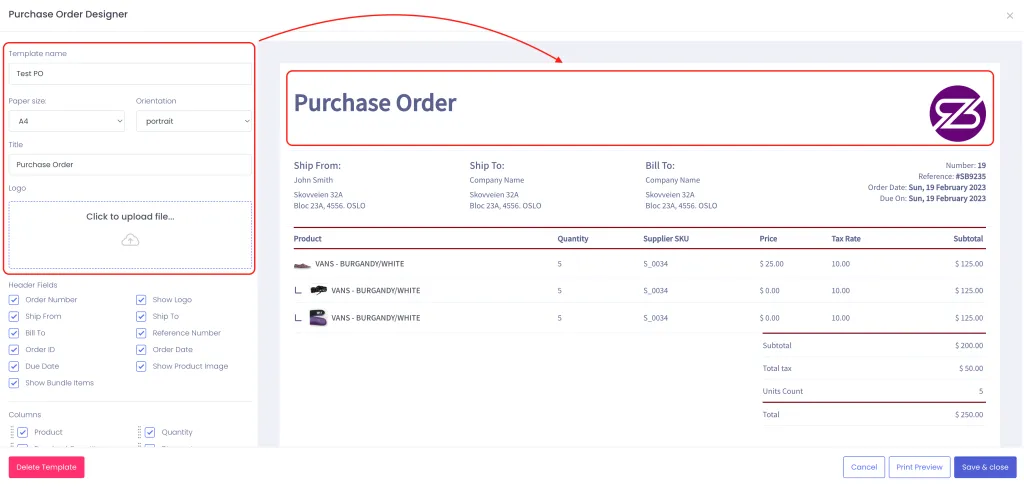
- General settings – Template name, paper size, orientation, title of the document and logo
- Header Fields – Fields like ship to address or order information like number, due date, etc.
- Columns – Columns that hold information about your products (SKU, barcode, tax rate, etc.)
- Footer – Can hold static information that you include in all your documents (e.g. Bank details)
General information and the Footer are identical across all your templates but can contain different information according to the document type.
General settings
General settings contain these properties:
Template name
Paper size
Orientation
Title
Logo
Company Information Header
Footer
The Footer is also a field that is identical in all template types. However, the content of the footer is defined by you.
You can use the footer to include static information, such as your bank details or standard information that you share with the recipients of that document type.

Now that we have covered the General settings and the Footer, we can review the differences template types have in the Header Fields and Columns. All the properties for different types of documents are listed below.
Invoice Template
Header Fields for invoices contain the following properties:
Ship To
Invoice Number
Reference number
Customer Notes
Method
Show Product Image
Show Bundle Items
Bill To
Show Logo
Ship From
Order date
Shipment date
Tracking code
Tax Number
Created At Date
EORI Number
Assignee
Show the Currency
Columns that are available for Invoices are as follows:
- Product name
- SKU
- Price
- Barcode
- Discount
- Quantity
- Country of origin
- Tax rate
- HS Code
- Subtotal
Purchase Order Template
Header Fields for purchase orders contain the following properties:
Ship To
Order Number
Reference number
Customer Notes
Method
Show Product Image
Show Bundle Items
Bill To
Show Logo
Ship From
Order date
Due Date
Show Currency
Columns that are available for purchase orders are as follows:
- Product name
- SKU
- Price
- Received Quantity
- Discount
- Quantity
- Supplier SKU
- Tax rate
- Subtotal
Packing slip template
Header Fields for packing slips contain the following properties:
Ship To
Order Number
Reference number
Customer Notes
Method
Show Product Image
Show Bundle Items
Bill To
Logo
Ship From
Order date
Shipment date
Tracking code
Carrier
Order Barcode
Units count
Show currency
Columns that are available for packing slips are as follows:
- Product name
- SKU
- Product Barcode
- Price
- Weight
- Quantity
Refund template
Ship To
Number
Show Logo
Refund Date
Show Product Image
Show Bundle Items
Show currency
Bill To
Reference
Ship From Location
Assignee
Refund Comments
Columns that are available for packing slips are as follows:
- Product Name
- SKU
- Price
- Barcode
- Quantity
- Restock
- Tax Rate
- Subtotal